Control the order
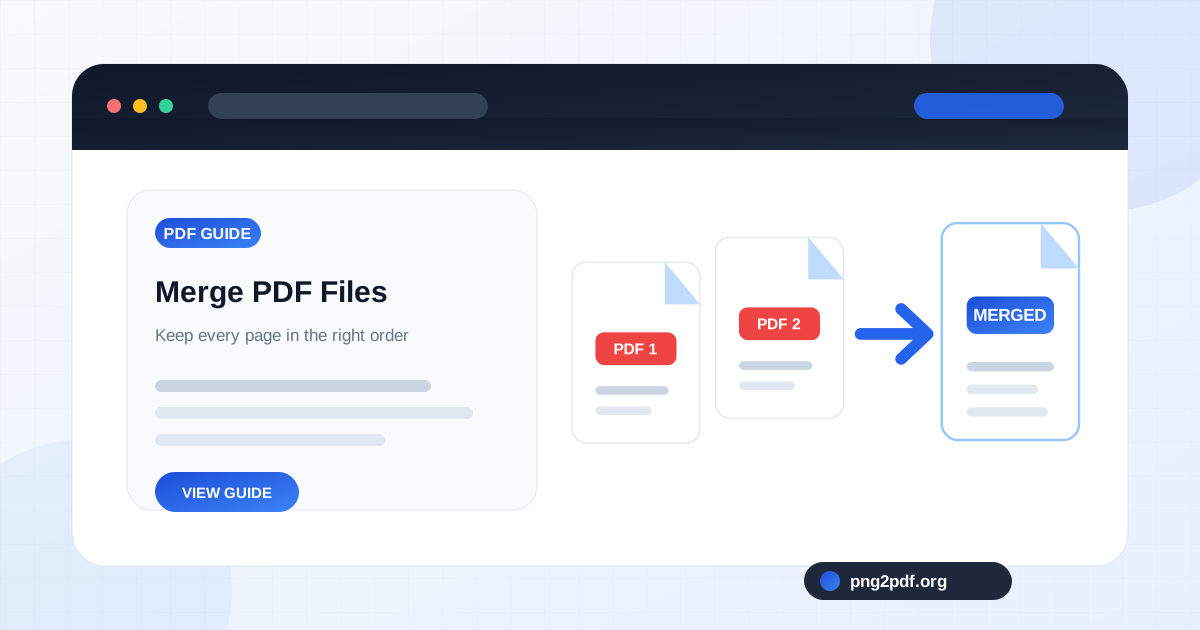
Move files up or down before the merge so complete documents appear in the correct sequence.
Select two or more PDF files, arrange them in the order you want, and download one combined document. Every page is copied directly in your browser without sending the source files to a conversion server.
Review the document details before processing.
Merging is useful when related documents arrive as separate attachments: a cover letter and résumé, monthly statements, scanned contract sections, classroom handouts, or several reports that belong in one package. This tool reads each selected PDF, copies its pages, and places them into a new document according to the order displayed in the file list.
Because pages are copied instead of captured as screenshots, the tool does not intentionally lower image quality. Different page sizes and orientations can remain together in the same output. An A4 report can be followed by a landscape chart or a Letter-size form without forcing every page into one template.
Move files up or down before the merge so complete documents appear in the correct sequence.
Portrait, landscape, A4, Letter, and custom pages can coexist in the merged PDF.
The browser reads and saves the documents without a server-side conversion workflow.
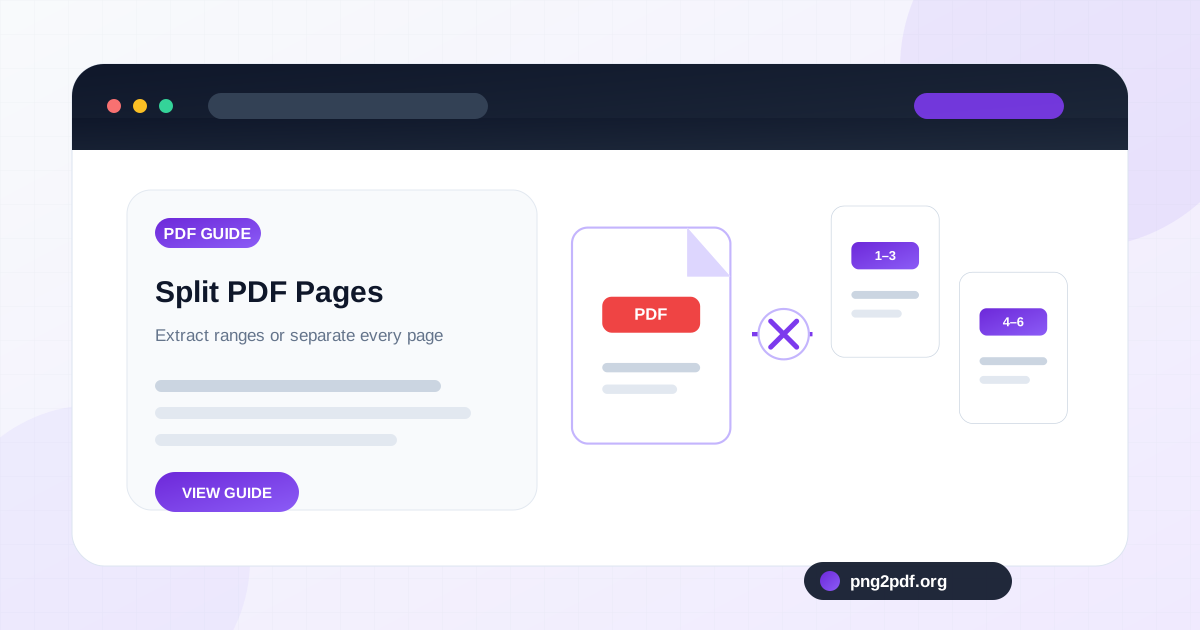
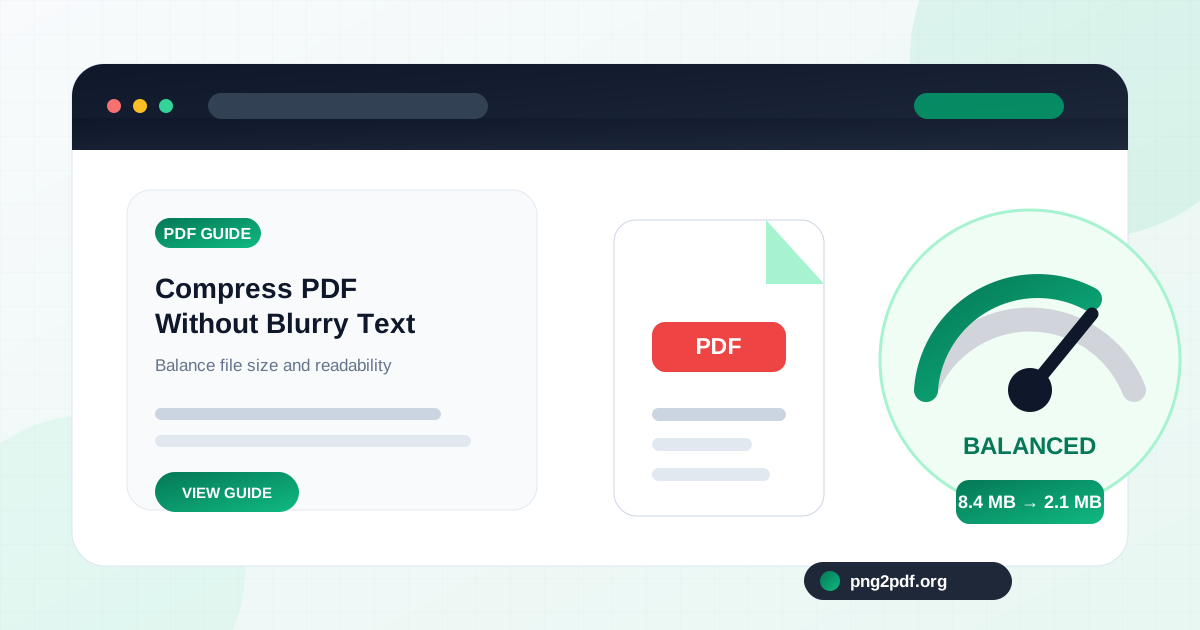
Open critical source files before combining them and confirm that pages are upright, complete, and unlocked. If a document contains unnecessary pages, use Split PDF first. If the finished file is too large for email, Compress PDF can create a smaller image-based version afterward.
A single document is easier to send, archive, and print than a collection of loosely named files. Job applications can combine supporting documents in the requested order. Property records can group invoices, photographs, and signed forms. Students can place separate assignments into one submission, while small businesses can assemble quotes, terms, and product sheets for a customer.
For long-term archiving, use descriptive filenames and verify the merged page order after download. Digital signatures, advanced forms, bookmarks, and document-level attachments may not transfer exactly as expected, so legally sensitive files should be checked in a dedicated PDF viewer before distribution.
Convert images, combine documents, extract pages, or reduce file size without creating an account.
Practical help for merging, splitting, compressing, ordering, and preparing PDF documents.
Combine reports, scans, invoices, and attachments into one correctly ordered PDF while avoiding duplicate, missing, or misplaced pages.
Read guideExtract selected pages, divide a long document into useful sections, or save every PDF page separately with a clear naming plan.
Read guideCombine screenshots, scans, receipts, or design exports into one ordered PDF while keeping text and fine details readable.
Read guideReduce an image-heavy PDF to a practical size while protecting small text, diagrams, signatures, barcodes, and scanned details.
Read guide