Three compression levels
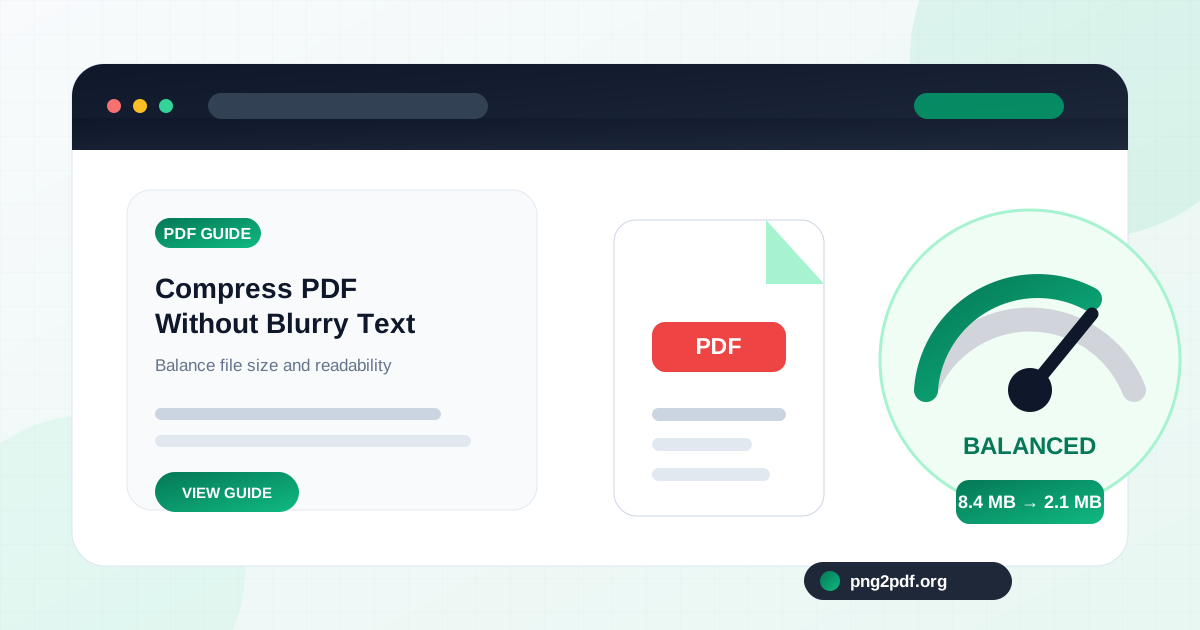
Choose a practical balance between visual detail and output size.
Reduce the size of scanned or image-heavy PDFs with light, balanced, or strong compression. Pages are rendered and rebuilt directly in your browser, with an optional grayscale mode for documents that do not need color.
Review the document details before processing.
Many large PDFs are collections of full-page images: scanned contracts, photographed receipts, exported slides, portfolios, and pages created from screenshots. These files can be difficult to attach to email or upload to portals with strict size limits. The compressor renders each page at a controlled resolution and stores it as a compressed JPEG inside a new PDF.
Light compression retains more detail, Balanced is suitable for ordinary reading and sharing, and Strong prioritizes a smaller file. Grayscale can reduce size further when page color is not important. The output retains the original page dimensions, so A4, Letter, portrait, and landscape layouts remain proportionally correct.
Choose a practical balance between visual detail and output size.
Remove color data from paperwork that only needs readable black-and-white content.
Pages are rendered and rebuilt locally without a server-side upload workflow.
Use Light when small text, diagrams, or fine line work must remain clear. Balanced works well for ordinary screen reading and email. Strong is more suitable for large photo scans or upload limits where some softness is acceptable. After downloading, zoom into the smallest important text and verify that it remains readable.
A PDF containing mostly text and vector graphics may already be compact. Rebuilding those pages as images can remove advanced features without producing meaningful savings. Compression is most effective when the source contains oversized photographs or scans. Very short PDFs also have structural overhead that limits the percentage reduction.
If the result is larger, try Strong compression or grayscale. For documents that must retain searchable text, signatures, forms, or accessibility information, use a dedicated optimizer that can compress embedded images without rasterizing the complete page.
Convert images, combine documents, extract pages, or reduce file size without creating an account.
Practical help for merging, splitting, compressing, ordering, and preparing PDF documents.
Reduce an image-heavy PDF to a practical size while protecting small text, diagrams, signatures, barcodes, and scanned details.
Read guideShrink image-based PDFs by fixing oversized sources, empty pixels, duplicate pages, and inefficient page choices.
Read guideCombine reports, scans, invoices, and attachments into one correctly ordered PDF while avoiding duplicate, missing, or misplaced pages.
Read guideExtract selected pages, divide a long document into useful sections, or save every PDF page separately with a clear naming plan.
Read guide