Flexible ranges
Select consecutive and non-consecutive pages with commas and hyphens.
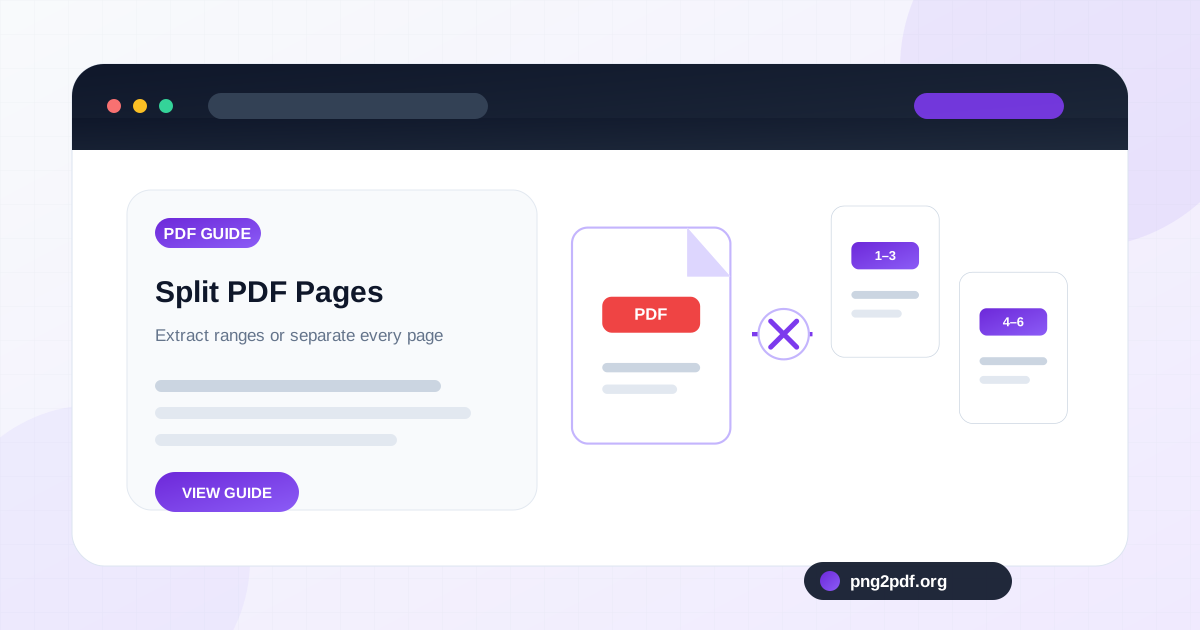
Choose a PDF, enter page numbers such as 1-3, 5, 8-10, and decide whether to create one extracted document or individual PDF files. The original document stays on your device while the pages are copied.
Review the document details before processing.
A PDF often contains more material than you need to share. You may want one chapter from a manual, selected pages from a bank statement, a single signed form from a packet, or separate pages from a scan. This tool lets you describe the required pages with familiar notation such as 1-3, 5, 8-10 .
The selected pages can be copied into one new PDF in the order entered. Alternatively, each page can become its own one-page PDF and be packaged into a ZIP archive. Copying pages directly avoids the quality loss that can occur when a document is printed or captured as images.
Select consecutive and non-consecutive pages with commas and hyphens.
Create one PDF per selected page and download the complete set together.
Selected PDF pages are copied rather than rebuilt as screenshots.
1-5 selects the first five pages. 2, 6, 10 selects three individual pages. 1-3, 8, 12-15 combines ranges and single pages. Reversed ranges such as 8-4 are normalized into ascending order.
Removing unrelated pages can protect privacy, reduce confusion, and create a smaller attachment. A tenant might send only the signature page of a lease; an accountant might extract the relevant statement period; a student might submit only the assigned chapter; and a technician might share a few troubleshooting pages from a large manual.
Always review the downloaded result before sending it. Page numbers printed inside the document may differ from the PDF viewer’s numeric page positions when a cover or contents page is present.
Convert images, combine documents, extract pages, or reduce file size without creating an account.
Practical help for merging, splitting, compressing, ordering, and preparing PDF documents.
Extract selected pages, divide a long document into useful sections, or save every PDF page separately with a clear naming plan.
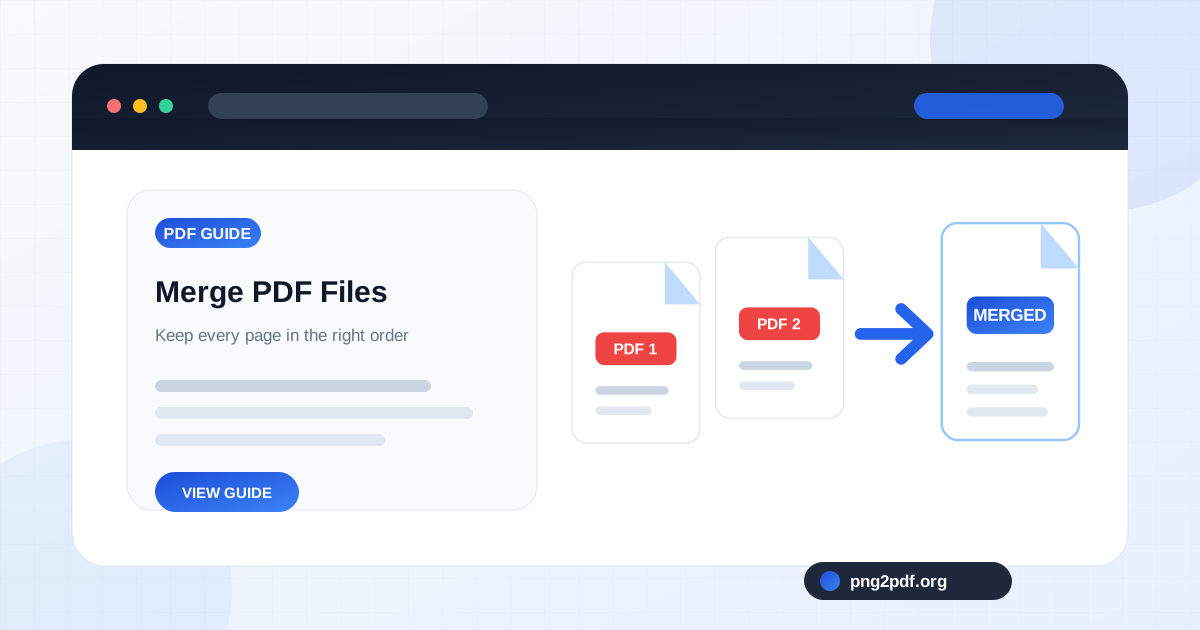
Read guideCombine reports, scans, invoices, and attachments into one correctly ordered PDF while avoiding duplicate, missing, or misplaced pages.
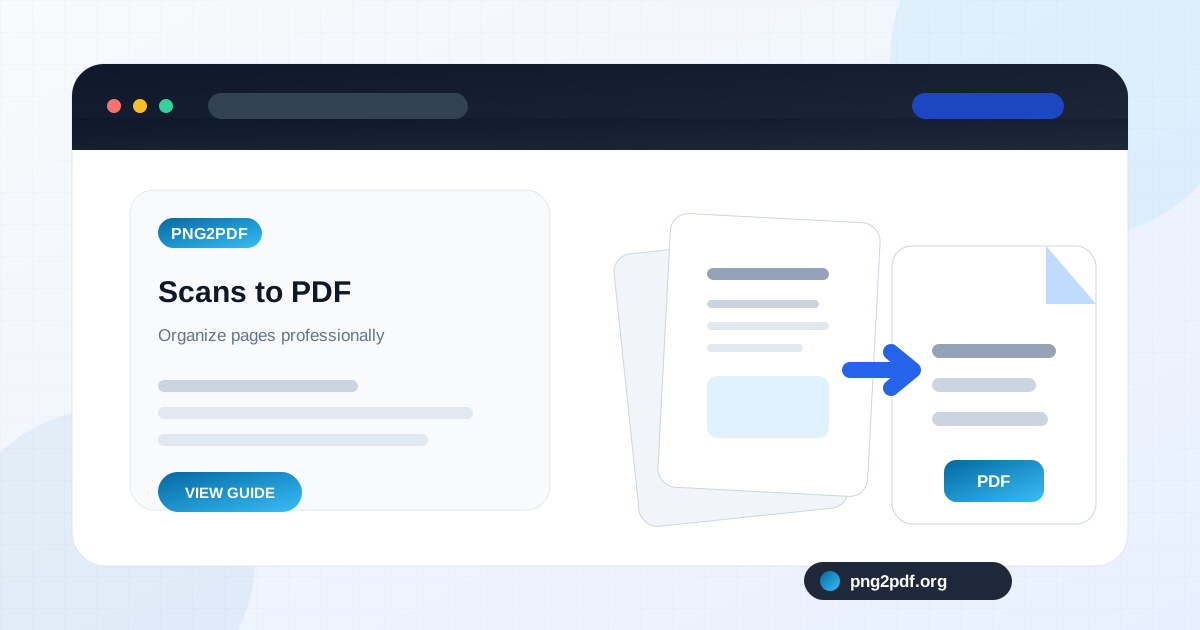
Read guidePrepare, rotate, order, and combine scanned image pages into a readable PDF for records or submission.
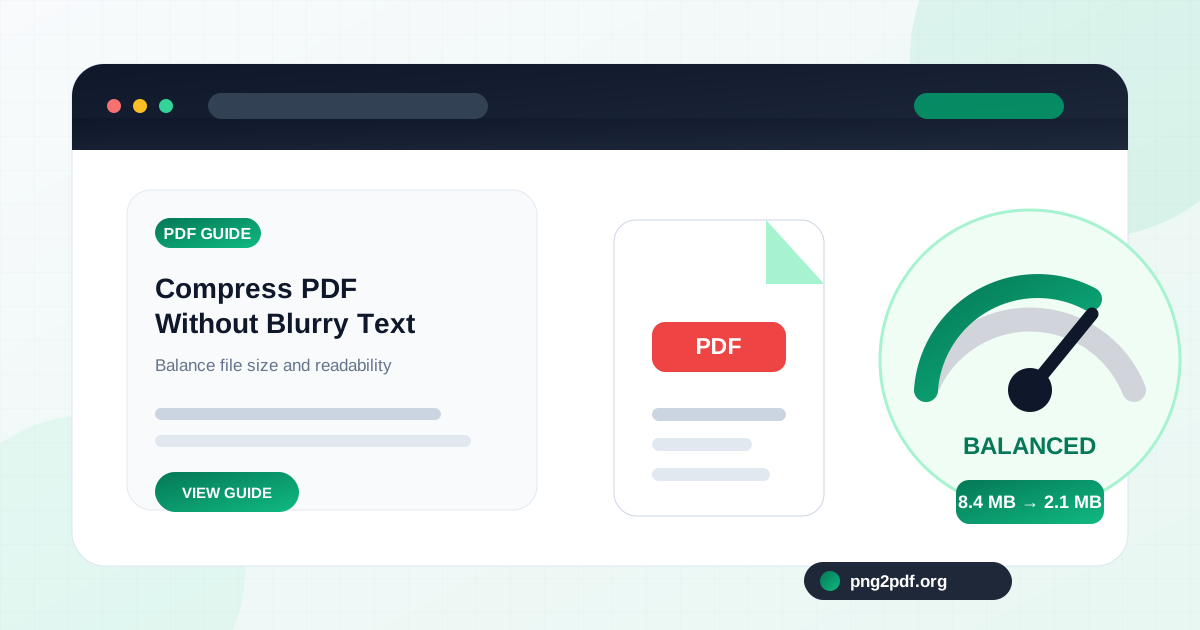
Read guideReduce an image-heavy PDF to a practical size while protecting small text, diagrams, signatures, barcodes, and scanned details.
Read guide