Splitting a PDF is useful when a document contains more material than one recipient needs. A long scan may include several records, a report may contain an appendix that must be submitted separately, or a combined file may need to be divided into chapters. The safest split begins with a clear decision about which pages belong together.
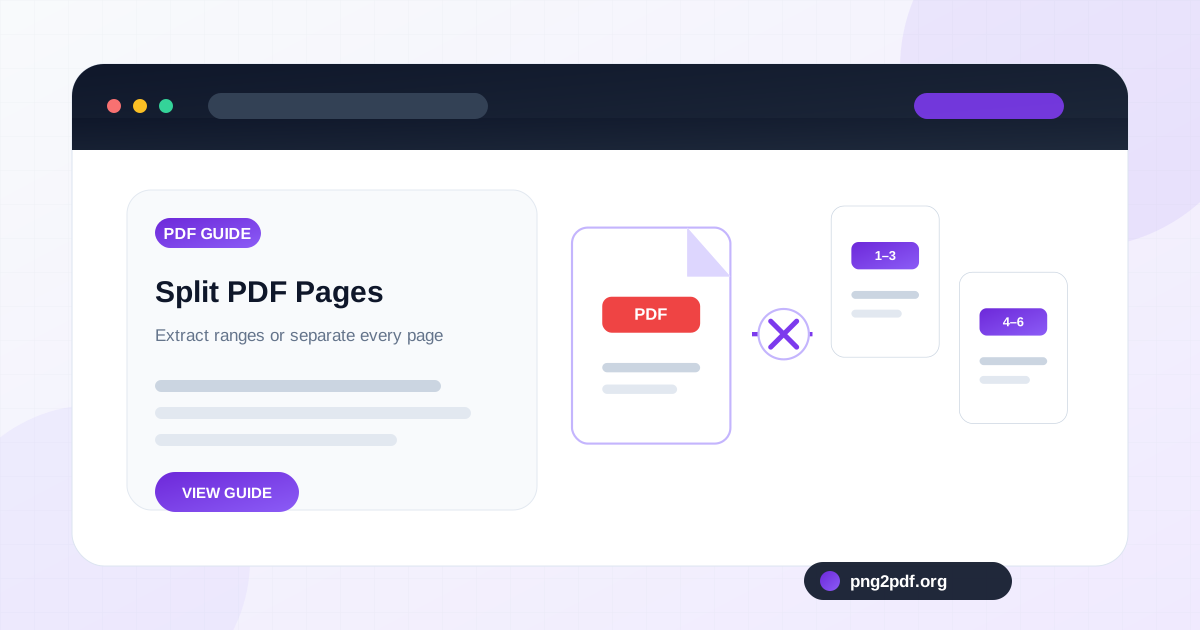
The PNG2PDF Split PDF tool supports two common workflows: extracting a page range into a new PDF and creating separate PDF files for individual pages. Both preserve the visual page content, but they solve different organizational problems.
Choose between a page range and separate pages
Use a page range when the selected pages form one meaningful document. Examples include pages 1–4 for an application form, pages 12–20 for a report chapter, or several non-adjacent evidence pages that should remain together.
Use separate-page output when each page must stand alone: individual certificates, one-page invoices, labels, worksheets, or scanned forms. The tool packages these outputs into a ZIP archive so they can be downloaded together without creating a long list of separate browser downloads.
Read the document before entering page numbers
PDF page numbers shown by a viewer may not match printed numbers inside the document. A report can display “Page 1” on the third PDF page because the cover and contents pages are unnumbered. When selecting a range, use the PDF viewer’s actual page position unless the tool explicitly supports printed labels.
Write down the start and end positions for each required section. For sensitive documents, also note pages that must be excluded. A quick page map prevents mistakes such as sharing the page before or after the intended record.
How page-range syntax works
A practical range field can accept a single page, a continuous range, or a mixture separated by commas:
-
5extracts page 5. -
2-7extracts pages 2 through 7. -
1-3, 8, 11-14collects several sections into one output PDF.
Enter page numbers in the order you want them to appear. A sequence such as
8, 2-4
intentionally puts page 8 first. Remove repeated page numbers unless duplication is required.
Split a PDF step by step
- Open the Split PDF tool and select one PDF.
- Check the detected page count.
- Choose custom range output or separate-page output.
- For a custom range, enter the required pages and review the order.
- For separate pages, choose a filename prefix that will remain meaningful after extraction.
- Create the output, open it, and verify the first and last selected pages.
When the original document is large, test one short range before processing every section. This confirms that the numbering is based on the page positions you expected.
Split documents at logical boundaries
A useful split follows the content rather than an arbitrary file-size target. Divide a handbook by chapter, financial records by month, evidence by category, or a scan by document type. Logical groups are easier to name, share, and merge again later.
If a single range remains too large for an upload limit, split at a natural subsection and then use the Compress PDF tool only where needed. The article on reducing PDF size while protecting readability explains what to inspect after compression.
Use predictable output names
A name such as
page-1.pdf
is adequate for a temporary export but weak for long-term organization. Add context:
invoice-2026-04-page-01.pdf
,
training-module-03.pdf
, or
case-file-exhibit-b.pdf
.
Keep leading zeros when a folder contains many separate pages. Filenames ending in
01
,
02
, and
10
sort correctly; filenames ending in
1
,
2
, and
10
may not.
Does splitting change page quality?
Extracting existing pages should not make the visible page content blurrier. The process copies selected pages into new PDF files. The output may differ internally, and advanced features may not survive exactly, but ordinary text and images should retain their appearance.
Do not convert the PDF pages to screenshots and back merely to split them. That introduces an image-rendering step, can remove searchable text, and may enlarge or degrade the result.
Protect confidential information
Splitting is often used to remove pages before sharing. Always inspect the output rather than assuming that an entered range was correct. Check the page before and after every sensitive boundary. Also review document properties, comments, attachments, and form data when confidentiality requirements extend beyond visible pages.
The original file should be stored separately. Do not overwrite the only complete copy until the extracted documents have been checked.
What happens to forms, bookmarks, and signatures?
Page extraction focuses on page content. Bookmarks that point to removed pages, embedded files, interactive form relationships, comments, and document-level actions may not transfer as expected. Digital signatures can become invalid when pages are extracted because the signed document has changed.
For a form that must remain interactive or a legally signed PDF, test the output thoroughly and retain the original. A visual page that looks correct is not proof that every interactive or cryptographic feature remains intact.
Recombine selected sections when needed
A split is not necessarily the final step. After extracting several sections, use Merge PDF to create a smaller, purpose-specific package. The guide to merging PDF files in the right order covers sequence planning, duplicate checks, and mixed page sizes.
For scanned source material, it may be better to organize the images before creating a PDF. The article on turning scanned PNG pages into an organized PDF explains cropping, rotation, naming, and page order.
Checks to perform before sharing split files
- The first and last pages of each output are correct.
- No confidential neighboring page was included.
- The page order matches the intended reading sequence.
- Each filename describes the extracted content.
- Searchable text still works when it is required.
- Separate-page files sort naturally in their folder.
A well-planned split turns one difficult document into smaller files that are easier to understand, upload, and send without losing track of where each page belongs.