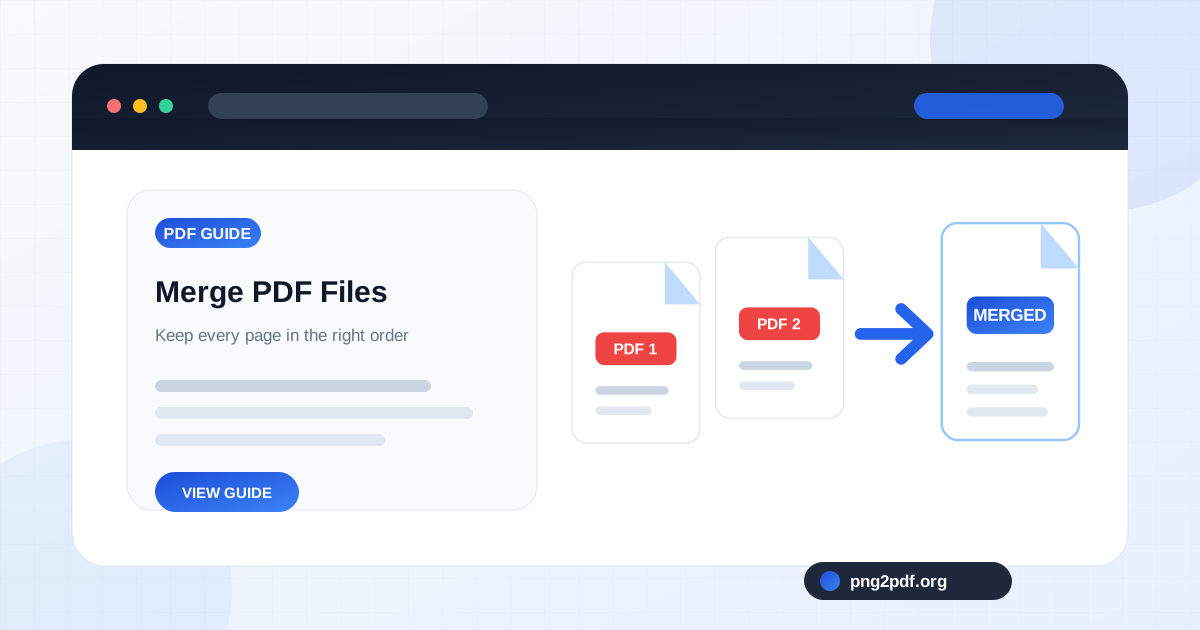
Merging PDF files sounds simple until the finished document opens with an appendix at the front, page numbers that restart unexpectedly, or two versions of the same attachment. The merge operation itself is usually fast. The part that determines whether the result is useful is the preparation: deciding what belongs in the document, placing each file in the correct sequence, and checking that the pages still make sense after several separate PDFs become one.
A browser-based workflow is especially convenient for routine documents because it avoids installing desktop software. With the PNG2PDF Merge PDF tool , the selected files can be reordered before the combined document is created, so the visible list becomes a practical outline of the final PDF.
Decide the document order before selecting files
Start by writing down the order a reader expects. A typical project package might begin with a cover letter, continue with the main report, then add tables, photographs, invoices, and supporting records. A legal or administrative submission may require a form first, evidence next, and identification pages last. When the sequence is clear before upload, it is easier to notice a missing section.
Do not rely on the order in which a file manager happens to display the PDFs. Sorting may change between name, date, and file type. Files named
report-final.pdf
,
appendix.pdf
, and
cover.pdf
are not guaranteed to appear in reading order.
Use numbered filenames for larger merge jobs
For more than a few files, add simple numeric prefixes:
01-cover.pdf
,
02-report.pdf
,
03-appendix-a.pdf
, and
04-receipts.pdf
. Two-digit numbering keeps the order stable when a package grows beyond nine parts. The numbers are preparation labels; the combined PDF can still receive a clean final filename.
Numbering is also useful when several people contribute documents. A shared naming plan makes it obvious where each file belongs and reduces the risk of merging an outdated draft.
Remove duplicates, blank pages, and temporary versions
Open each source PDF briefly before merging. Confirm the first and last page, the page count, and whether the file contains blank scanner pages. Look for filenames such as “copy,” “revised,” “final-2,” or “signed” that may represent alternate versions of the same document.
If one source contains pages that should not be included, use the Split PDF tool to extract only the required range. It is cleaner to prepare the source first than to merge everything and then discover confidential or irrelevant pages inside the final file.
Check page orientation and page size
A merged PDF can contain Portrait A4 pages, Landscape Letter pages, receipts, slides, and oversized drawings in the same file. That is valid: each page can keep its own dimensions. The result may feel inconsistent, however, when readers move between pages with very different sizes.
Decide whether mixed sizes are appropriate. A report with one landscape chart is normal. A stack of scans with random rotations is not. Correct sideways pages in the source document before merging when possible, and check that important material is not cropped.
Merge PDFs step by step
- Open the Merge PDF page and select at least two PDF files.
- Review the displayed filename and page count for every item.
- Move files up or down until the list matches the intended reading order.
- Remove accidental selections or obsolete versions.
- Enter a descriptive output filename.
- Create the merged PDF, then open it and inspect the boundaries between source files.
The most important review points are where one PDF ends and the next begins. Confirm that no cover page is repeated, no section begins midway through a topic, and no blank sheet interrupts the sequence.
Does merging reduce PDF quality?
A straightforward page-copy merge should not make text or images blurrier. Existing PDF pages are copied into a new document rather than photographed from the screen. This differs from image-based compression, which may render pages and rebuild them at a lower resolution.
File size may be slightly different because the combined document has a new internal structure. If the merged file is too large, review it first and then use Compress PDF . The guide to compressing a PDF without making text unreadable explains how to choose a sensible quality level.
Be careful with forms, signatures, bookmarks, and attachments
Visual page content is the safest part of a merge. Interactive forms, document-level JavaScript, embedded attachments, bookmarks, comments, layers, and digital signatures may not behave the same after pages are copied into a new PDF. A cryptographic signature can become invalid when the document changes, even when the visible signed page still appears.
For signed contracts or specialized engineering PDFs, keep the originals and test the merged copy. If preservation of advanced PDF features is mandatory, use a workflow designed specifically for those features rather than assuming that every page-copy tool will retain them.
Merge image-based PDFs and newly created PDFs
Many merge jobs begin as images. Scanned receipts may be in one PDF, screenshots in another, and photographs in a third. You can first use the PNG to PDF converter or another image-to-PDF tool, then merge the resulting documents into the final package.
When all source material is still available as images, it may be simpler to build one PDF directly. The guide to combining multiple PNG images into one PDF covers image order, page fit, and quality choices.
Choose a filename that remains clear after sharing
A good merged filename describes the complete package rather than one source file. Examples include
client-onboarding-documents.pdf
,
project-alpha-submission.pdf
, or
2026-tax-records.pdf
. Avoid names such as
merged.pdf
or
document-final-final.pdf
, which become ambiguous once downloaded or forwarded.
Review the final document as a reader
- Open the PDF from the first page and scroll through every transition.
- Confirm that page content is readable at a normal zoom level.
- Check that portrait and landscape pages rotate as expected.
- Search for a known word if searchable text matters.
- Verify the final page count against the sum of the source files.
- Keep the original PDFs until the merged copy has been accepted.
A reliable merge is not merely a file that opens. It is a document whose sequence, page count, naming, and visual continuity make sense to someone who has never seen the separate source files.