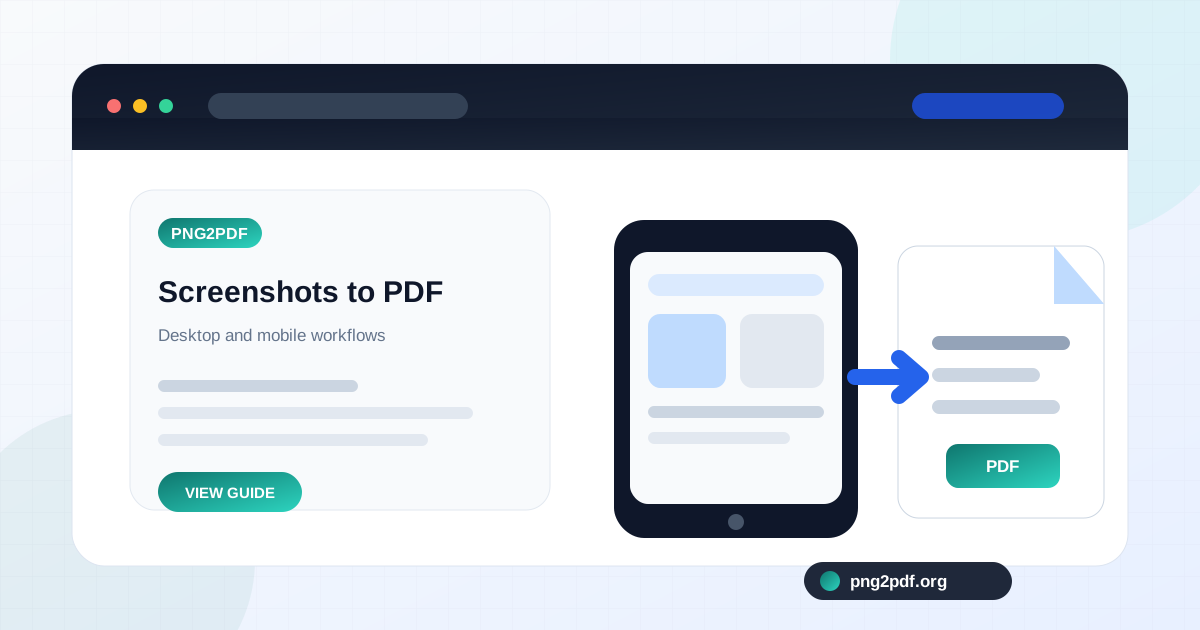
Screenshots are excellent for capturing what appeared on a screen at a specific moment. They are less convenient when a task produces six, twenty, or fifty separate files. A PDF keeps those captures together, preserves a fixed reading order, and is easier to attach to an email, upload to a portal, print, or archive.
The best method depends on whether you have one screenshot or a sequence, whether page order matters, and whether you need control over page size and margins. Built-in operating-system features are useful for quick one-off conversions. A browser-based converter is usually more practical when several PNG screenshots must become one document.
Convert multiple screenshots with a browser tool
Most modern devices save screenshots as PNG or can export them as PNG. To combine them, open the PNG2PDF converter , select the screenshots, review their order, choose a page size, and create the PDF. Each screenshot becomes a page.
Automatic orientation is useful for mixed collections. A portrait phone capture can use a portrait page, while a wide desktop capture can use landscape. Choose Contain when every edge must remain visible. This matters for troubleshooting steps, transaction records, chat histories, and interface walkthroughs.
Convert a screenshot to PDF on Windows
Windows can create a PDF through the print interface. Open the screenshot in an image viewer, choose Print, select Microsoft Print to PDF , adjust the layout, and save. This is convenient for one image and does not require additional software.
For multiple screenshots, Windows print selection can work, but page order and fitting may be less predictable than a dedicated preview list. Rename the images numerically first and inspect the print preview carefully. If the screenshots document a process, using a converter with visible reordering controls reduces the chance of page 8 appearing before page 7.
Convert screenshots to PDF on a Mac
Preview can open image files and export or print them as PDF. For a single screenshot, open it in Preview, use the Print command, and choose the PDF save option. For multiple screenshots, select them in Finder, open them together in Preview, arrange the thumbnails in the sidebar, and print or export the combined set.
Before saving, click through the thumbnail list. Finder selection order and Preview sidebar order are not always the same as the story you intend to tell. Also check whether the print settings rotate wide screenshots automatically or shrink them onto portrait pages.
Save screenshots as PDF on iPhone or iPad
iOS provides PDF creation through the Share and Print workflow in several apps. Select a screenshot in Photos, open Share, choose Print, expand the preview, and share or save the resulting PDF to Files. The exact labels can vary by iOS version and app context.
For a long sequence, it is often easier to move the PNG files into Files and use a web converter in the browser. This gives you one workspace for page order and document settings. Keep the browser tab open until the download is complete, especially with high-resolution captures.
Save screenshots as PDF on Android
Many Android devices offer a Print option from Gallery, Photos, Files, or the Share menu. Select Save as PDF as the printer destination, then review paper size and orientation. Manufacturer interfaces differ, so the command may appear under More, Share, or a three-dot menu.
When the built-in print flow accepts only one image at a time, a browser converter avoids creating several one-page PDFs that must later be merged. Select all PNG screenshots in one batch and arrange them before conversion.
Make screenshot text readable in the final PDF
Readability is usually a page-layout issue rather than a file-format issue. A very tall mobile screenshot placed on a single standard page may be reduced until the text is tiny. Crop the image into logical sections before conversion, or capture shorter screens so each page contains a readable amount of information.
Wide desktop screenshots often work better on landscape pages. Phone screenshots generally suit portrait pages. Avoid Stretch , which can distort interface elements and text. Use small margins when the screenshot already includes generous empty space.
Organize screenshots so another person can follow them
A useful screenshot PDF should not require the reader to guess what happened between pages. Start with a short title page when the subject is not obvious. Keep captures chronological, remove repeated screens, and include the state before and after an important action.
For bug reports, begin with the environment or account area, continue with the steps that trigger the problem, and end with the error or unexpected result. For purchase or delivery records, place the order summary before payment confirmation and shipping updates. The goal is not to include every capture; it is to include the sequence that proves or explains the point.
Protect private information before conversion
Crop or redact passwords, email addresses, account numbers, recovery codes, private messages, and notification previews that are unrelated to the purpose of the document. Do this in the source image before conversion. Covering information with a movable annotation in a document editor can be unsafe if the underlying content remains available.
A browser-based workflow can reduce unnecessary file transfer when conversion happens locally, but privacy still begins with what is visible in the screenshots. Review every page at full size before sending it outside your device.
Keep the original screenshots when the record matters
A PDF is easier to share, but individual screenshots may retain useful creation times, dimensions, and original filenames. Keep both when documenting a technical issue, transaction, project milestone, or other event that may need to be revisited. Store the PDF as the readable packet and the PNG files as the original capture set.